Integrated Terminal
ProjectHub includes a built-in integrated terminal that runs directly in the project directory. You can execute commands without opening a separate terminal application.
Overview
The integrated terminal is built on xterm.js 5.x and connects to a real shell (zsh/bash) through the macOS PTY (Pseudo-Terminal).
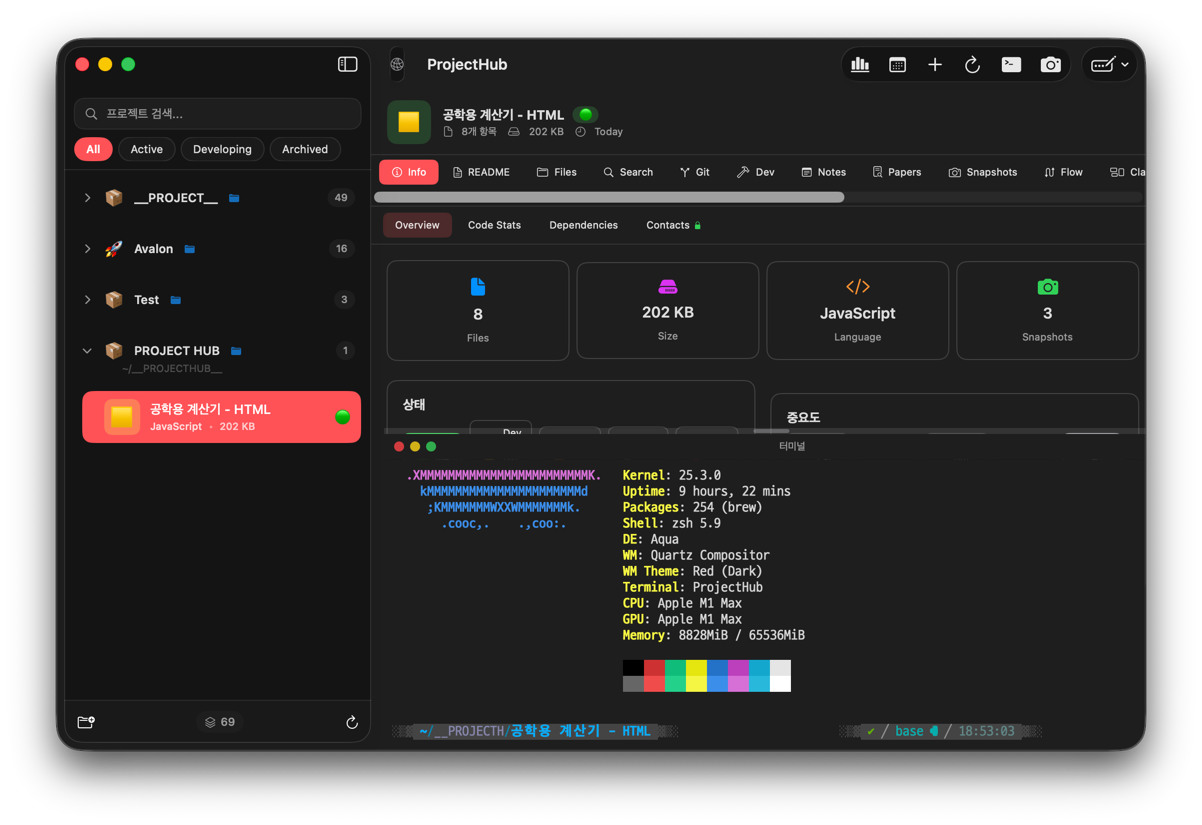
Key Features
| Feature | Description |
|---|---|
| Full Korean Support | Jamo composition + complete Hangul input support |
| ANSI Colors | 256-color + true color support |
| Link Detection | Automatic URL detection with clickable links |
| Scrollback | 10,000-line scroll history |
| Auto Resize | Terminal size adjusts automatically to fit the window |
| Project Directory | Automatically starts in the project folder |
Opening & Closing the Terminal
Toggle Methods
- Keyboard shortcut:
Command+T(the fastest way) - Header button: Click the terminal icon in the project detail view header
- Tab: Click the Terminal tab in the tab bar

Resizing
Drag the divider between the terminal panel and the main content area to adjust the terminal height.

Font and Theme
Font Priority
The terminal automatically selects an available font in the following order:
- D2Coding -- A font designed for Korean programming (recommended)
- MesloLGS NF -- Nerd Font patched font
- SF Mono -- macOS default monospace font
For the best Korean language support, we recommend installing the D2Coding font.
Color Theme
A color scheme based on the VS Code dark theme is applied:
- Background: Dark gray (
#1E1E1E) - Foreground: Light gray (
#D4D4D4) - ANSI 16-color + extended 256-color support
- Cursor: White block
Korean Input
The integrated terminal fully supports Korean input:
- IME Composition -- Text being composed with Jamo is displayed correctly
- Complete Hangul -- Fully composed Hangul characters are entered properly
- Base64 Encoding -- Base64 encoding is used internally for Unicode safety
Korean file names, Korean output, and Korean input all work correctly.
Opening in System Terminal
You can open the current project directory in the macOS default Terminal.app:
- Click the System Terminal button in the terminal toolbar
- Terminal.app opens and automatically navigates to the project directory
For complex tasks or when you need multiple terminals, working in the system terminal can be more convenient.
Restarting the Terminal
When the terminal is unresponsive or you need to apply new environment variables:
- Click the Restart button in the terminal toolbar
- The existing shell process is terminated
- A new shell starts in the project directory
Next Steps
- AI Agent -- Generate AI code with Vibe Coding
- Project Management -- Project organization guide
- Code Diagrams -- Code visualization