Vibe Coding & AI Agent
ProjectHub includes two AI coding tabs. They serve different purposes and work differently, so make sure to use the right one for your task.
Comparing the Two Tabs
| Vibe Coding | AI Agent | |
|---|---|---|
| Icon | ✨ (Sparkles) | 🪄 (Wand) |
| Approach | Interactive — real-time conversation with an AI CLI | Autonomous — automatic 7-stage pipeline execution |
| User Involvement | Direct instructions at every turn | One initial request, then fully automatic |
| Terminal | xterm.js split terminal | Workflow diagram + log view |
| Best For | Code review, debugging, refactoring, Q&A | New project creation, full feature implementation |
| AI Engines | Claude, Gemini, Opencode, Shell | Claude, Gemini |
Part 1: Vibe Coding (Interactive AI Terminal)
The Vibe Coding tab is an interactive terminal where you code in real time through conversation with an AI CLI. Use AI tools like Claude Code, Gemini CLI, and Opencode directly from the built-in terminal.
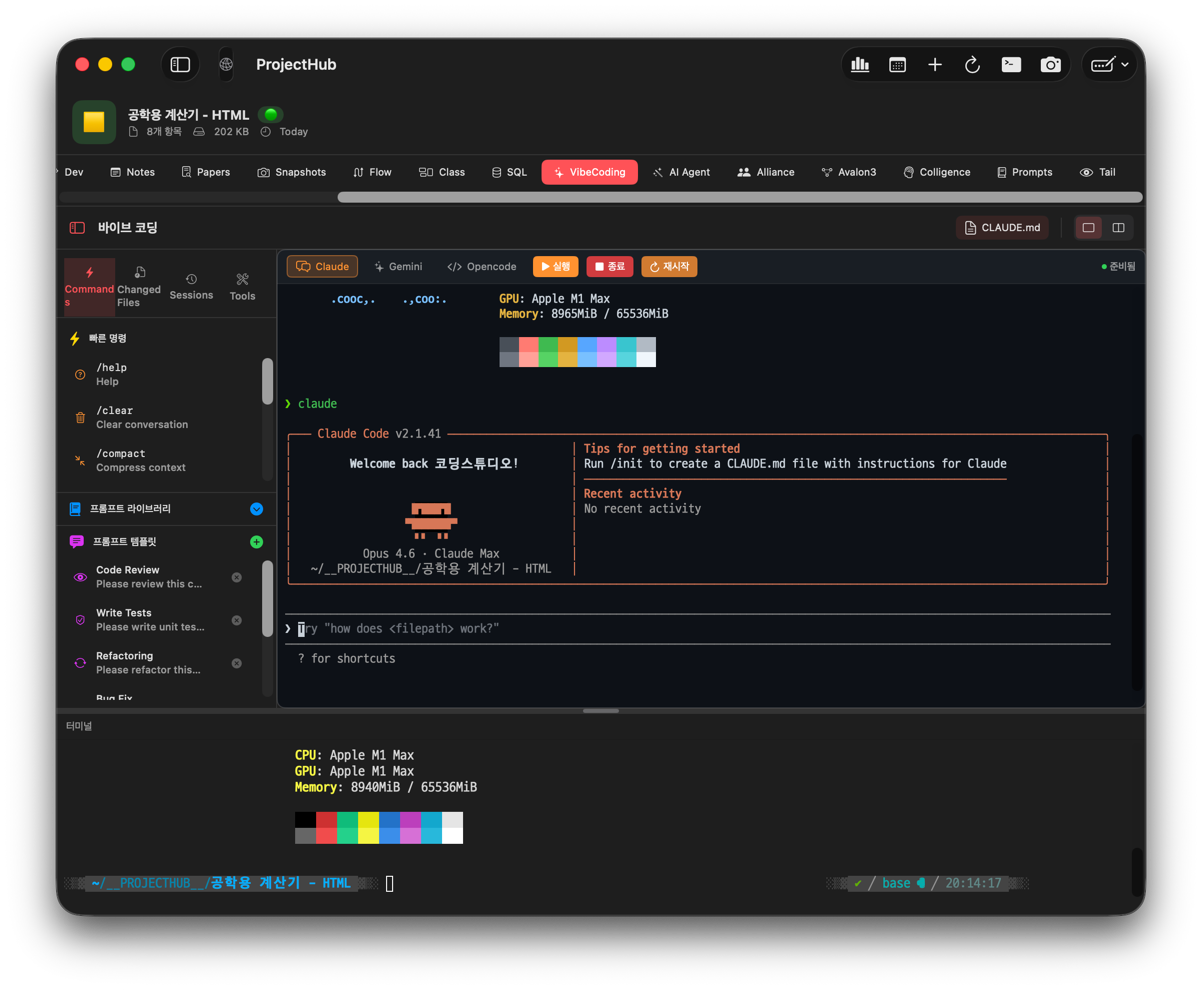
Selecting an AI Tool
Choose an AI tool from the top of each terminal panel:
| Tool | Description | Requirements |
|---|---|---|
| Claude | Anthropic Claude Code CLI | claude command installed |
| Gemini | Google Gemini CLI | gemini command installed |
| Opencode | Open-source AI CLI | opencode command installed |
| Shell | Direct command execution without AI | None |
Split Terminal
You can use two terminal panels simultaneously:
- Choose between side-by-side or top-and-bottom split
- Each panel can use a different AI tool (e.g., Claude on the left, Gemini on the right)
- Drag to adjust the split ratio (minimum 20%, maximum 80%)
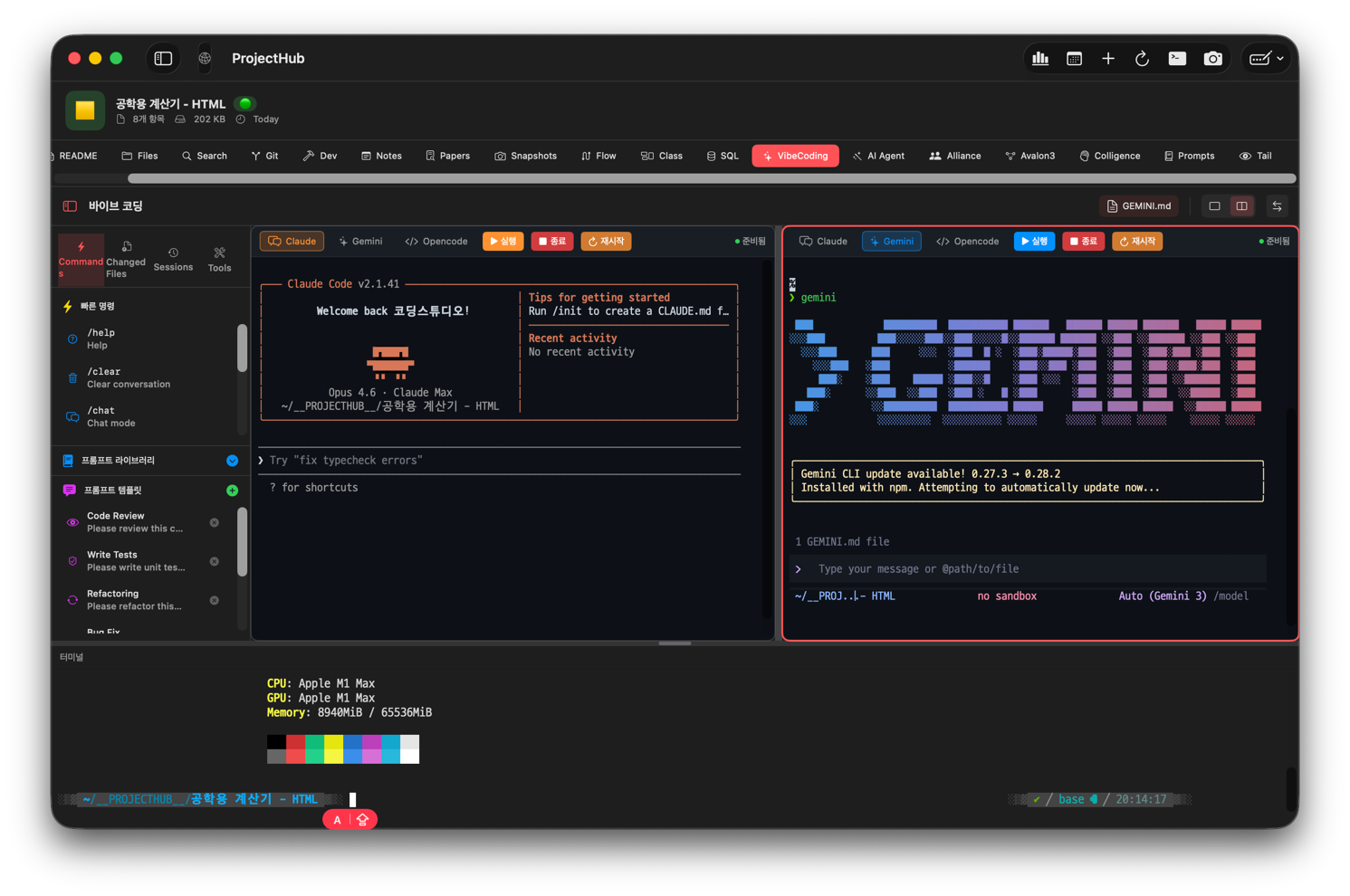
Sidebar Tabs
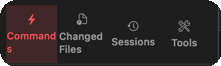
Commands
Run quick commands for each AI tool with one-click buttons:
Claude Commands:
| Command | Description |
|---|---|
/help | Show help |
/clear | Reset conversation |
/compact | Compress context |
/bug | File a bug report |
/config | Check configuration |
| Command | Description |
|---|---|
/help | Show help |
/clear | Reset conversation |
/chat | Chat mode |
/tools | Check available tools |
Changed Files
Track files modified by AI in real time:
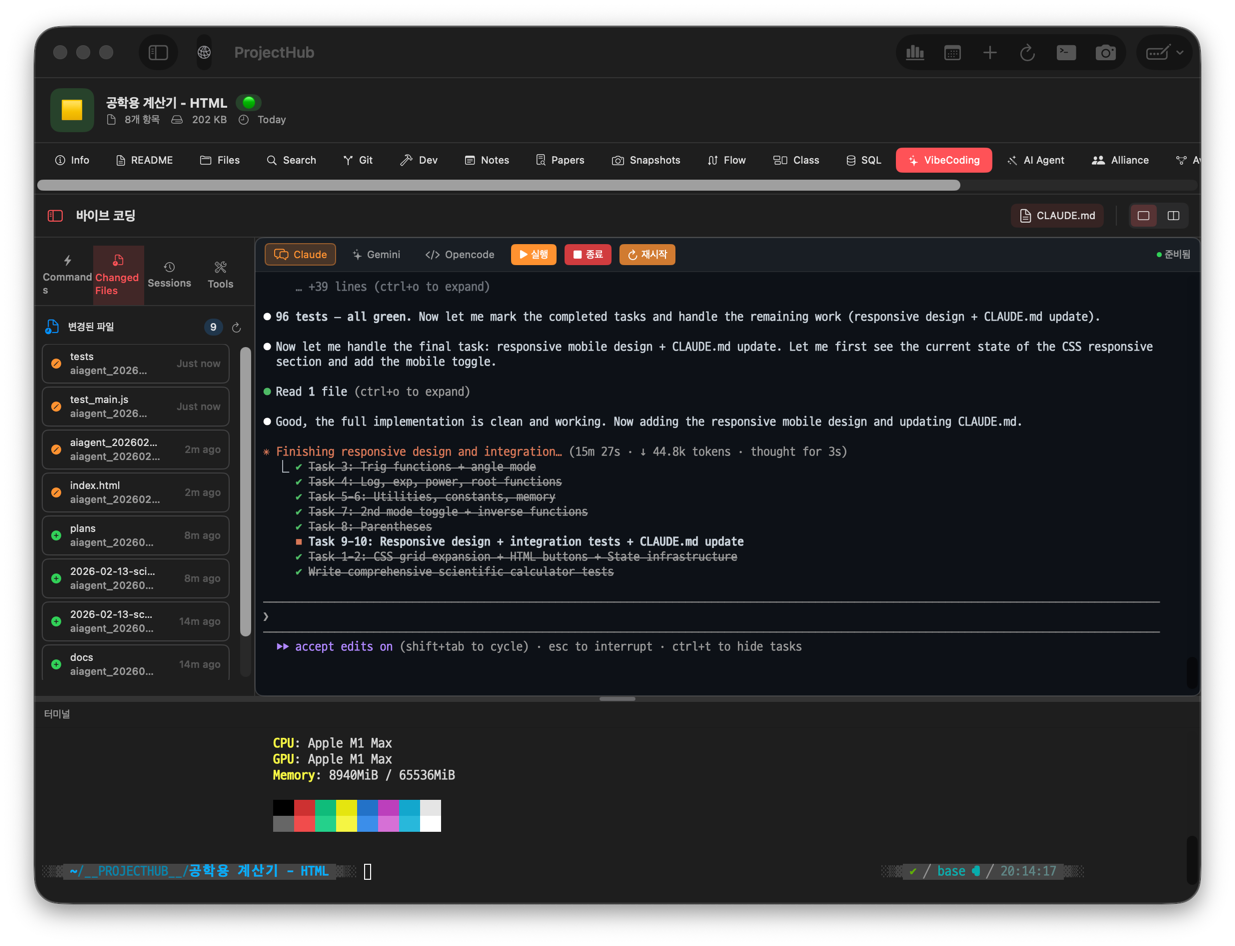
| Indicator | Color | Meaning |
|---|---|---|
| Added | Green | Newly created file |
| Modified | Orange | Modified file |
| Deleted | Red | Deleted file |
- Auto-refreshes every 5 seconds
- Displays up to 50 files
- Automatically excludes build directories such as
node_modules,.git, etc.
Sessions
Browse previous AI session history:
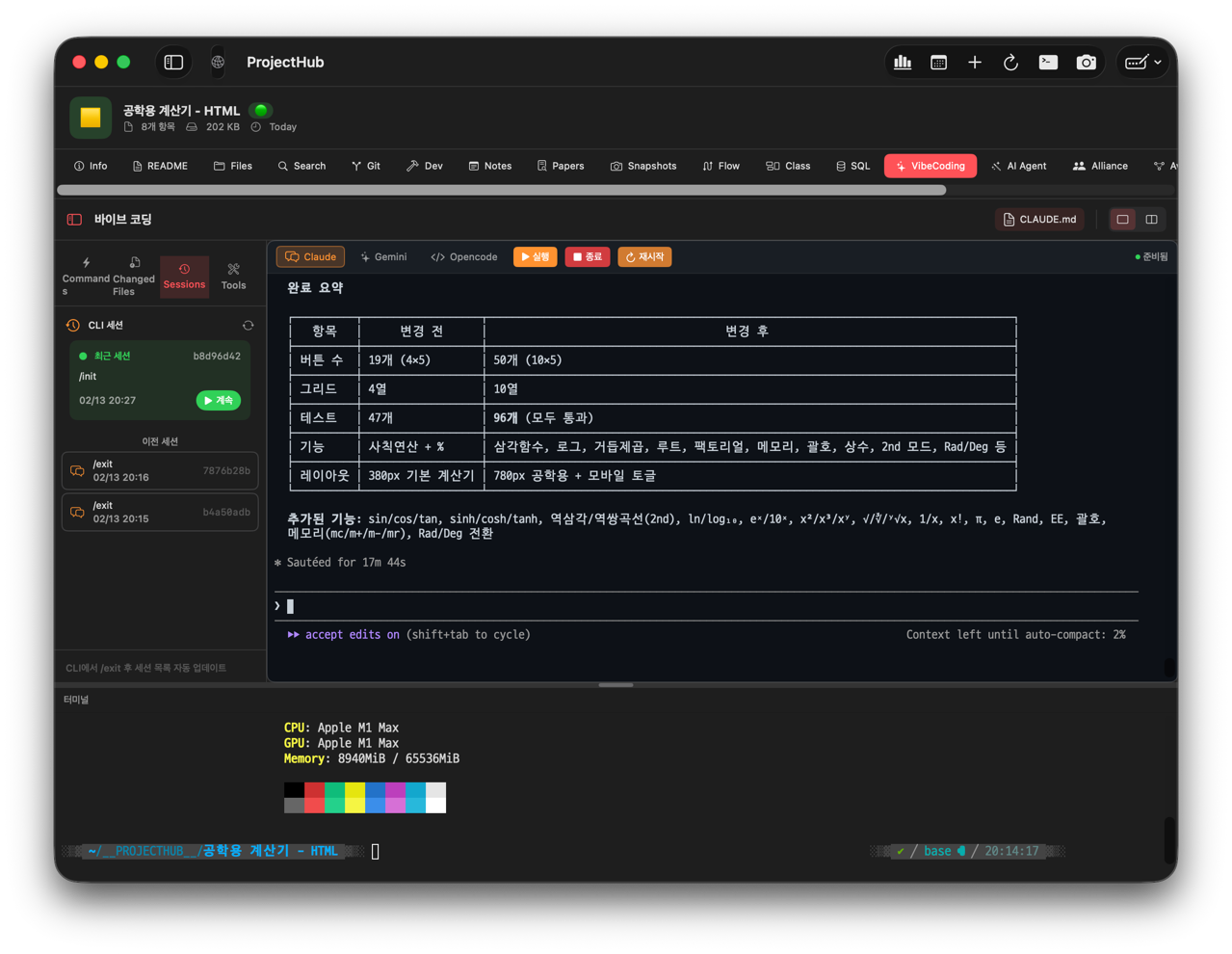
- Automatically discovers Claude/Gemini CLI session history
- Shows session ID, timestamp, and first message preview
- Displays up to 20 recent sessions
- Click a session to resume a previous conversation
Part 2: AI Agent (Autonomous Pipeline)
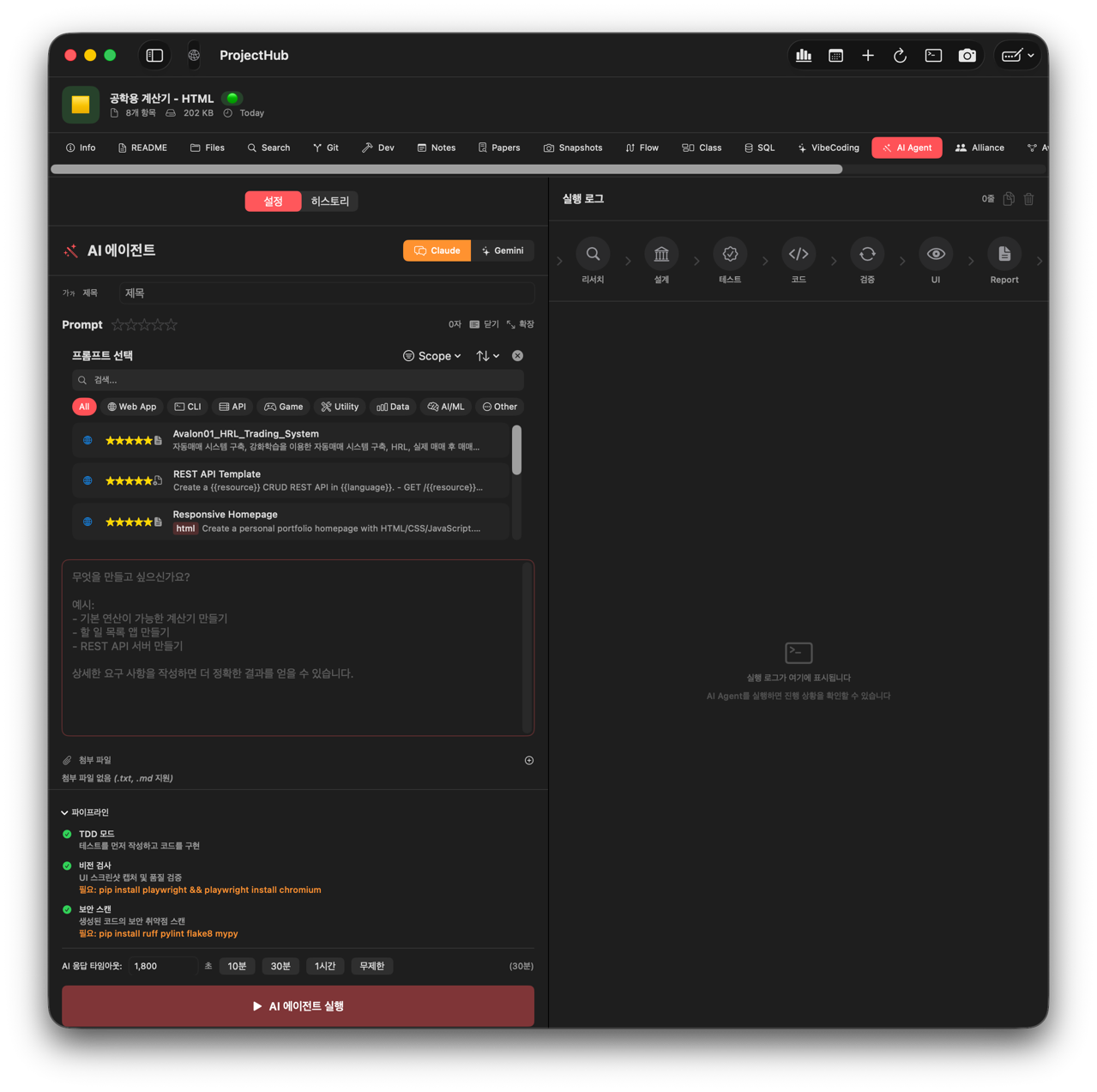
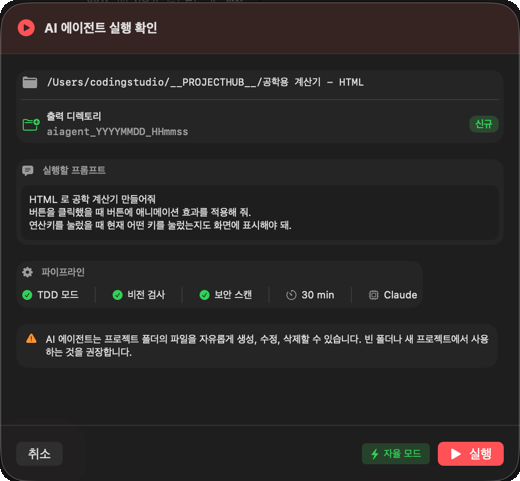
The AI Agent tab is an automation system that executes a 7-stage autonomous pipeline from a single request. Enter a prompt, and the AI handles everything from research to the final report automatically.
7-Stage Pipeline
User Input → Research → Architect → Test Designer → Coder → Self-Healing → Vision Gate → Report
Each stage runs sequentially, and you can monitor progress in real time through the workflow diagram. The AI CLI (Claude or Gemini) performs all file operations directly, while the Python code only handles flow control and completion marker detection.
Stage 1: Research
The AI analyzes your request and investigates the existing project context:
- Extracts core requirements and constraints from the request
- Analyzes existing project files and code patterns
- Recommends the optimal programming language and framework
- Creates
.projecthub/ai-agent/docs/RESEARCH.md
RESEARCH_COMPLETE: recommended_language=, complexity=
Stage 2: Architect (Design)
Based on research findings, the AI automatically generates project design documents:
| Document | Description | Location |
|---|---|---|
| PRD.md | Product Requirements Document | .projecthub/ai-agent/docs/ |
| FILE_STRUCTURE.md | File and directory structure | .projecthub/ai-agent/docs/ |

Completion marker: ARCHITECT_COMPLETE: language=
Stage 3: Test Designer
Using a TDD (Test-Driven Development) approach, tests are generated before the code is written:
- Generates unit test files
- Designs test cases (normal, edge cases, error cases)
- Automatically selects the appropriate test framework (pytest, Jest, Go test, etc.)
TEST_DESIGN_COMPLETE: test_file=, test_count=
Since this follows a TDD approach, tests will fail at this point. They will pass once the code is written in the next stage.
Stage 4: Coder (Code Generation)
Generates the actual code based on the PRD and tests:
- Supports multi-file generation
- Automatically creates project configuration files (package.json, Cargo.toml, etc.)
- Includes dependency installation commands
CODER_COMPLETE: files_created=,
Stage 5: Self-Healing (Auto-Repair)
After code generation, the AI CLI autonomously runs linting and tests, and directly fixes any errors found:
- Check source files for syntax errors
- Run linters → fix files directly when errors are found
- Run tests → fix code and re-run when tests fail
- Repeat until all linting and tests pass
- Up to 5 repair attempts (default)
- Self-Healing stage gets 2x the timeout
| Tool | Language |
|---|---|
| ruff, pylint, flake8, mypy | Python |
| ESLint, tsc | JavaScript/TypeScript |
| cargo check, clippy | Rust |
| go build, go vet | Go |
| javac | Java |
| swiftc | Swift |
| g++, clang++ | C++ |
| gcc, clang | C |
| dotnet build | C# |
| kotlinc | Kotlin |
| Semgrep | Security scan (all languages) |
SELF_HEALING_COMPLETE: status=, attempts=
Stage 6: Vision Gate (Visual Verification)
For projects with a UI (web, desktop apps), screenshots are captured and the AI evaluates UI quality:
- Automatically starts the server and captures browser screenshots
- AI evaluates UI layout, accessibility, and design quality
- AI directly fixes UI issues when found
- Score-based pass/fail determination
VISION_COMPLETE: status=, score=
Vision Gate requires Playwright to be installed:
pip install playwright && playwright install
Stage 7: Report
Once all stages are complete, a README.md is automatically generated:
- Project description
- Installation instructions
- Usage guide
- File structure
- Tech stack
REPORT_COMPLETE: file=README.md
AI Agent UI
Settings Panel (Left)
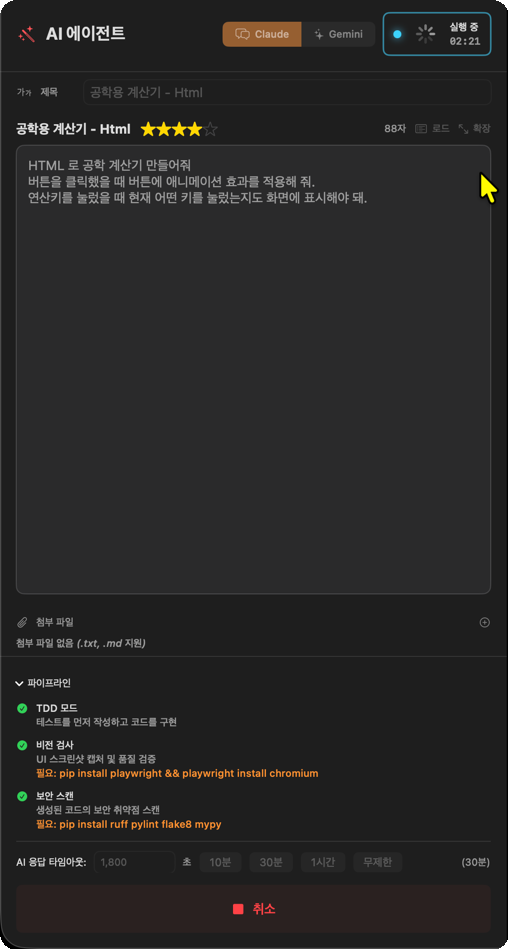
- AI Backend Selection: Claude / Gemini toggle
- Title Input: Project name
- Prompt Input: Natural language request (file attachments supported)
- Timeout Setting: 10 minutes / 30 minutes / 1 hour / Unlimited
- Run/Cancel Buttons
Workflow Diagram (Upper Right)

- Real-time status for each of the 7 stages (Waiting / In Progress / Success / Failed / Skipped)
- Animation on the active stage
- Arrows between stages to visualize the flow
Execution Logs (Lower Right)
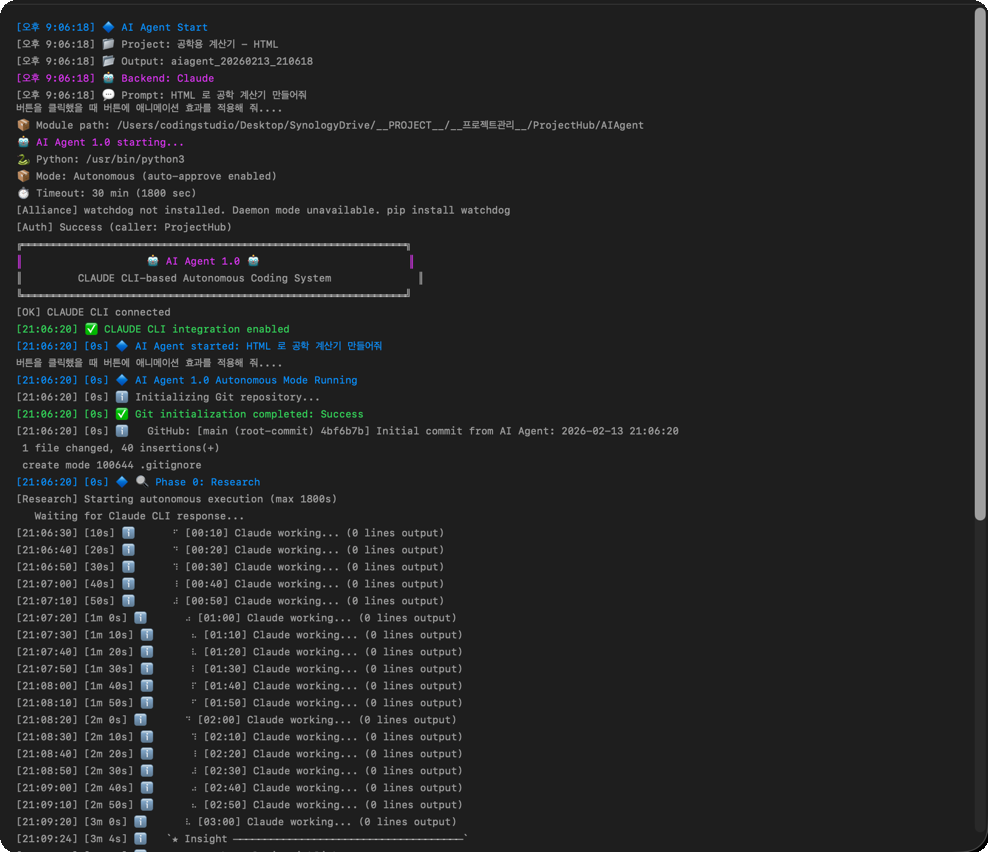
- Real-time monospace log output
- Color-coded: ✅ Success, ❌ Error, ⚠️ Warning, 🔷 Stage, 🤖 Agent
- Text selection and copy supported
Run History
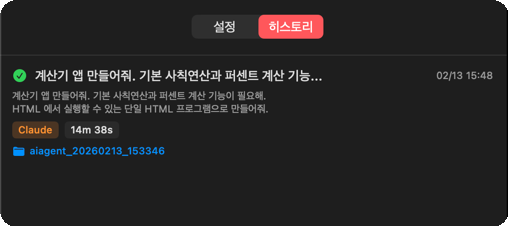
- Previous run records (success/failure, elapsed time, backend)
- Re-run and open output folder support
Supported Languages
AI Agent works with all programming languages supported by the AI CLI (Claude, Gemini). The following languages have automatic project configuration and linter/compiler setup:
| Language | Project Config | Test Framework | Linter/Compiler |
|---|---|---|---|
| Python | requirements.txt, pyproject.toml | pytest | ruff, pylint, flake8, mypy |
| Rust | Cargo.toml | cargo test | cargo check, clippy |
| Go | go.mod | go test | go build, go vet |
| JavaScript | package.json | Jest | ESLint |
| TypeScript | package.json, tsconfig.json | Jest/Vitest | ESLint, tsc |
| Java | pom.xml | JUnit | javac |
| Swift | Package.swift | XCTest | swiftc |
| C++ | CMakeLists.txt | Google Test | g++, clang++ |
| C | Makefile | — | gcc, clang |
| C# | .csproj | — | dotnet build |
| Kotlin | build.gradle.kts | — | kotlinc |
Prompt Writing Tips
Good Prompt Examples
Build a REST API server in Python.
- Use the FastAPI framework
- SQLite database
- User CRUD API (create, read, update, delete)
- JWT authentication
- Auto-generated Swagger docs
Bad Prompt Examples
Make me an app
Tips
- Specify the tech stack explicitly (frameworks, libraries)
- List the features you need
- Specify the language (auto-detection works, but being explicit is more reliable)
- For complex projects, break them into stages and make separate requests
- Both Korean and English prompts are supported
Output File Structure
All AI Agent output is saved within the project directory:
{project}/
├── .projecthub/
│   └── ai-agent/
│       ├── docs/
│       │   ├── RESEARCH.md          # Research findings
│       │   ├── PRD.md               # Requirements document
│       │   ├── FILE_STRUCTURE.md    # File structure
│       │   └── TEST_PLAN.md         # Test plan
│       ├── logs/
│       │   └── human_gate.json      # User approval records
│       └── screenshots/             # Vision Gate screenshots
├── src/                             # AI-generated source code
├── tests/                           # AI-generated test code
└── README.md                        # Auto-generated documentation