Project Management
This guide covers all the ways to efficiently organize and manage projects in ProjectHub.
Sidebar
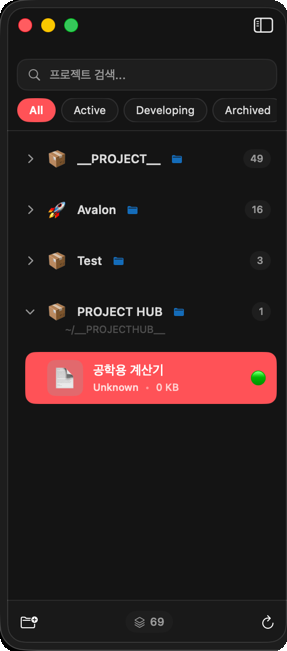
The sidebar is the core navigation of ProjectHub. Located on the left, it provides an at-a-glance view of all your projects and groups.
Search
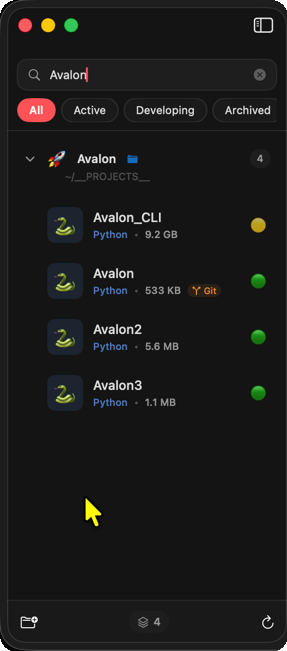
Type text into the search field at the top of the sidebar to filter projects in real time by name and description. During a search, an X button appears for quick clearing.
Status Filters
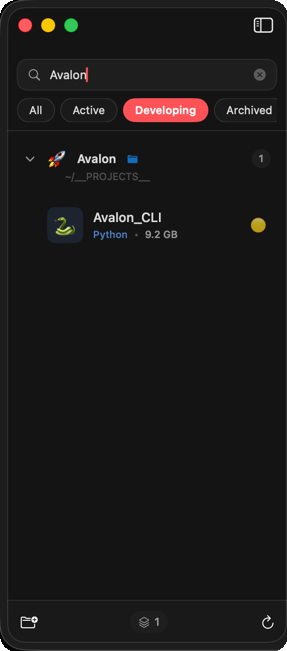
Below the search field, there is a horizontally scrollable row of filter buttons:
| Filter | Description |
|---|---|
| All | Show all projects (default) |
| Active | Active status projects only |
| Developing | Developing status projects only |
| Archived | Archived status projects only |
Project Row Information
Each project row in the sidebar displays the following information:

- Language Icon -- Color badge corresponding to the programming language (15+ languages with unique colors)
- Project Name -- Bold text
- Language Label -- Primary language name
- Size Indicator -- Project folder size (MB/GB)
- Git Badge -- Orange capsule badge displayed when a
.gitfolder is detected (including subdirectories) - Priority Icon -- Critical (red), High (orange), Medium (yellow), Low (green)
- Status Emoji -- Emoji representing the current project status
Context Menus (Right-Click)
The sidebar provides right-click context menus in three different areas:
Empty space right-click:
| Menu | Description |
|---|---|
| New Project | Open new project creation sheet |
| New Group | Open new group creation sheet |
| Menu | Description |
|---|---|
| New Project | Create a new project in this group |
| Scan This Folder | Re-scan the folder for new projects (directory groups only) |
| Open in Finder | Open the folder in Finder (directory groups only) |
| Edit Group | Modify group name, icon, or path |
| Delete Group | Delete the group (projects are moved to Uncategorized) |
| Menu | Description |
|---|---|
| Open in Finder | Open the project folder in Finder |
| Open in Terminal | Open Terminal at the project path |
| Delete Project | Delete the project |

Bottom Bar
The bottom of the sidebar contains the following buttons:
| Button | Function |
|---|---|
| New Group (folder+ icon) | Create a new project group |
| Project Count | Badge showing total number of projects |
| Scan (rotating arrow) | Auto-register projects by scanning a directory |
Project Groups
Groups let you organize related projects together.
Creating a Group
- Click the New Group button at the bottom of the sidebar, or select New Group from the empty space right-click menu
- Enter the group details:
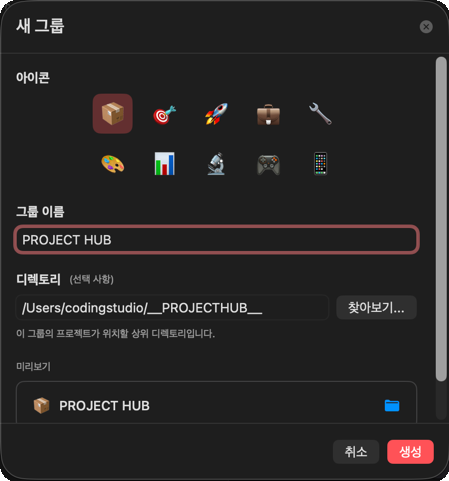
- Check the preview at the bottom to see how the group will appear, then click the Create button
Directory-Based Groups
When a directory path is specified, projects within that folder are automatically included in the group. The group header displays a blue folder icon, and expanding the group reveals the abbreviated directory path (using ~ format).
Expanding/Collapsing Groups
Click a group header to expand or collapse it. Group headers display an expand/collapse chevron, group emoji, name, and project count badge.
Uncategorized Projects
Projects that do not belong to any group appear in the Uncategorized section. The Uncategorized section also supports expand/collapse.
Drag & Drop
Use drag and drop in the sidebar to organize projects and groups:
- Reorder Groups -- Drag groups to change their order
- Move Projects -- Drag a project onto a different group header to change its group
- Move to Uncategorized -- Drag a project to the Uncategorized section to remove it from a group
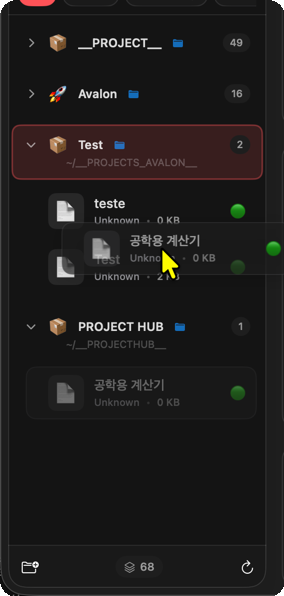
A confirmation dialog appears when moving a project to another group. If both groups have directory paths set, the project folder will also be physically moved.
Project Detail View
Clicking a project in the sidebar displays the project detail view on the right.
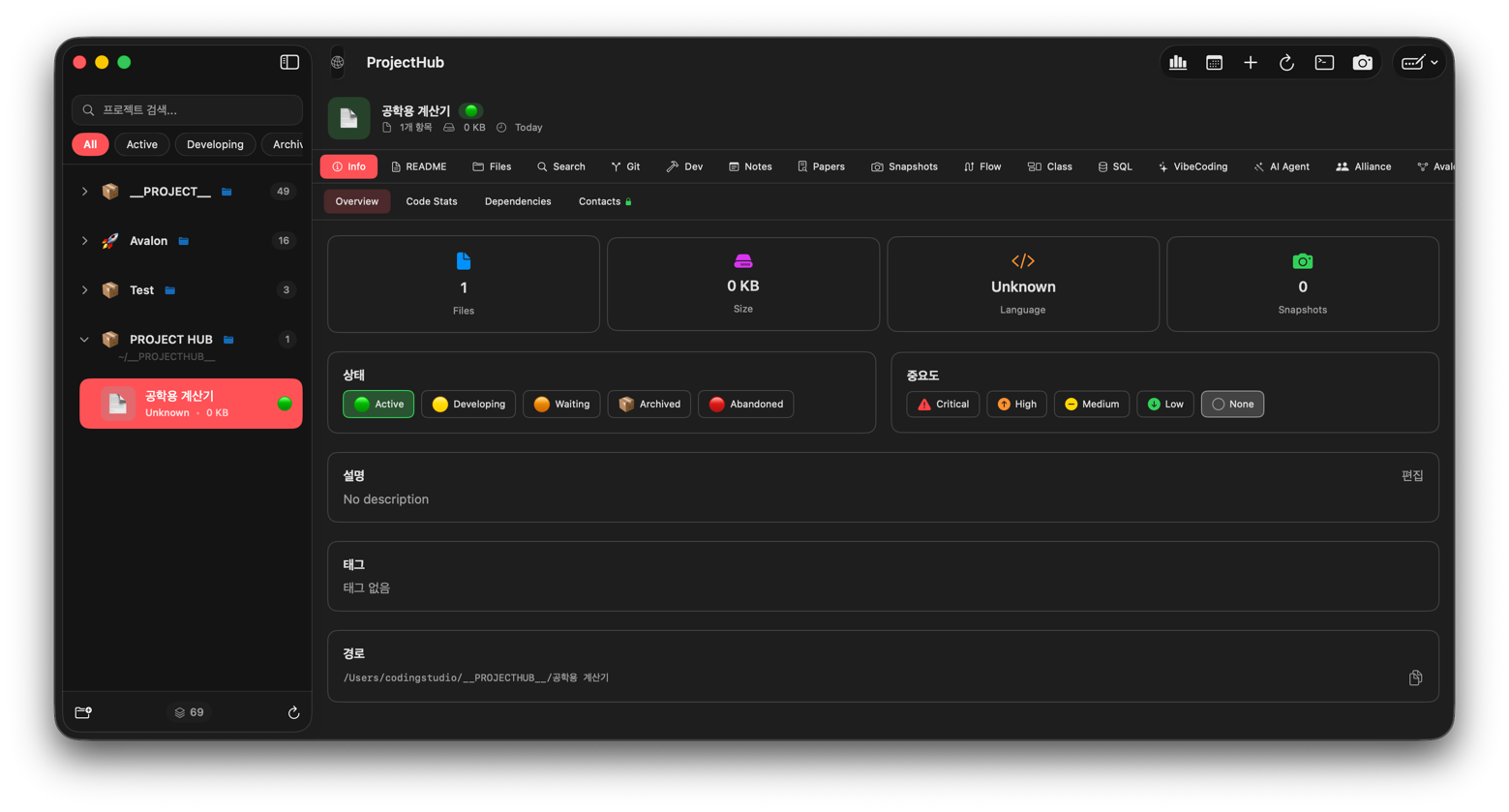
Header Area
The header at the top displays the following information:
| Element | Description |
|---|---|
| Language Icon | Programming language icon (color varies by status) |
| Project Name | Project title |
| Status Badge | Status capsule (Active, Developing, Waiting, Archived, Abandoned) |
| File Count | Number of files in the project |
| Size | Project folder size |
| Last Modified | Date of last modification |
| Git Indicator | Orange icon displayed when a Git repository is detected (root or subdirectory) |
Toolbar Buttons
| Button | Shortcut | Description |
|---|---|---|
| Terminal | Command+T | Toggle the bottom terminal panel |
| Snapshot | -- | Create a snapshot of the current state |
| Open menu | -- | Open in VS Code, Finder, or Terminal |
Tab List
All available tabs in the project detail view (19 total):

| Tab Name | Icon | Description | Detailed Guide |
|---|---|---|---|
| Info | info.circle | Project information, contacts, chat | This page |
| Files | folder | Project file explorer | This page |
| Search | magnifyingglass | Text search within code | This page |
| Git | arrow.triangle.branch | Git status and operations | This page |
| Dev | hammer | Developer tools | -- |
| Notes | note.text | Notes, bookmarks, memos | This page |
| Papers | doc.text.magnifyingglass | Academic paper search (7 DBs) | Paper Search |
| Snapshots | camera | Version snapshot management | Snapshots |
| README | doc.text | README.md viewer | -- |
| Flow | arrow.triangle.swap | Flowcharts | Diagrams |
| Class | rectangle.3.group | Class diagrams | Diagrams |
| SQL | cylinder.split.1x2 | SQL diagrams | Diagrams |
| VibeCoding | sparkles | Interactive AI coding (real-time terminal) | AI Agent |
| AI Agent | wand.and.stars | Autonomous AI coding (6-stage pipeline) | AI Agent |
| Alliance | person.2.fill | AI document-driven project workflow | Alliance |
| Avalon3 | point.3.connected.trianglepath.dotted | Multi-AI debate | Avalon3 |
| Colligi | brain.head.profile | AI collective intelligence analysis | Colligi |
| Prompts | text.book.closed | Prompt library | This page |
| Tail | eye | Log file viewer | -- |
AI-related tabs (VibeCoding, AI Agent) are lazy-loaded on first selection.
Info Tab
View and edit the basic information of a project.
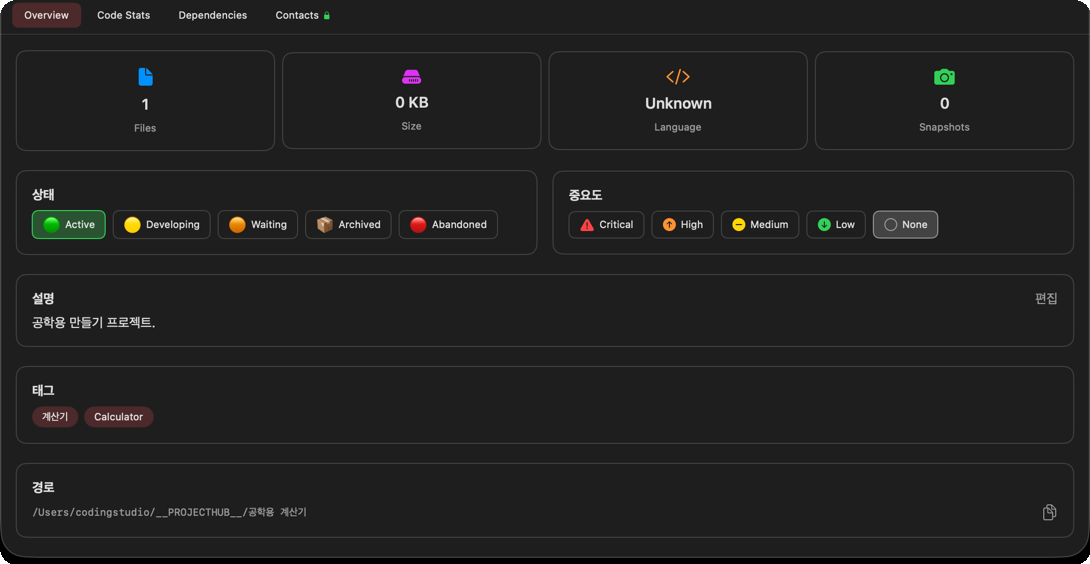
Editable fields:
| Field | Description |
|---|---|
| Status | Active, Developing, Waiting, Archived, Abandoned |
| Priority | Critical, High, Medium, Low |
| Description | Project description text |
| Tags | Tags for project classification |
File Explorer
Browse the project's file structure in the Files tab.
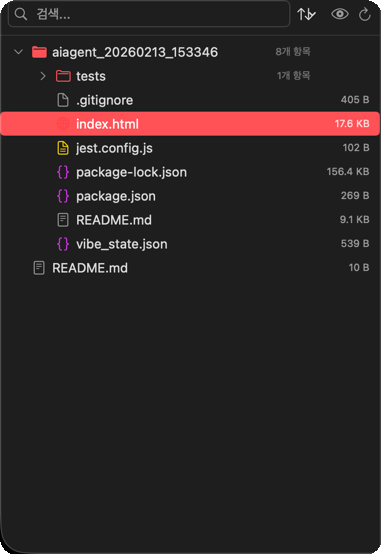
- Click folders to expand/collapse
- Click files to preview their contents
- Icons vary by file type
- Hidden folders such as
.git,node_modules, and.projecthubare filtered out
Code Search
Search for text across the entire project in the Search tab.
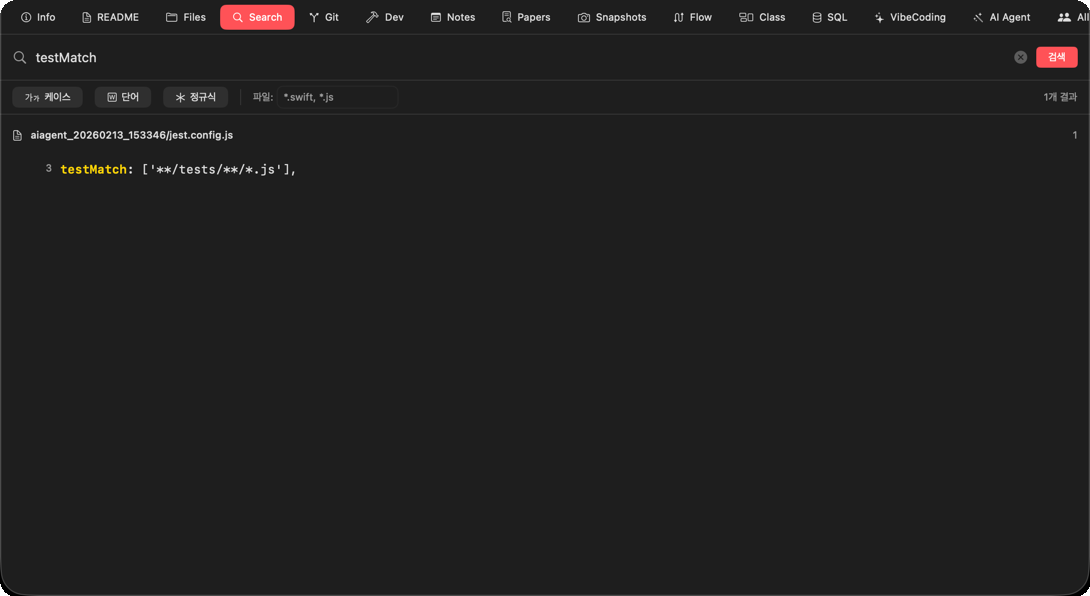
- Enter a search term and press Enter or click the search button
- Results are shown with file names and line numbers
- Clicking a result navigates to the corresponding line in the file
Git Management
The Git tab is always available for every project. It provides visual Git repository management with 4 sub-sections.
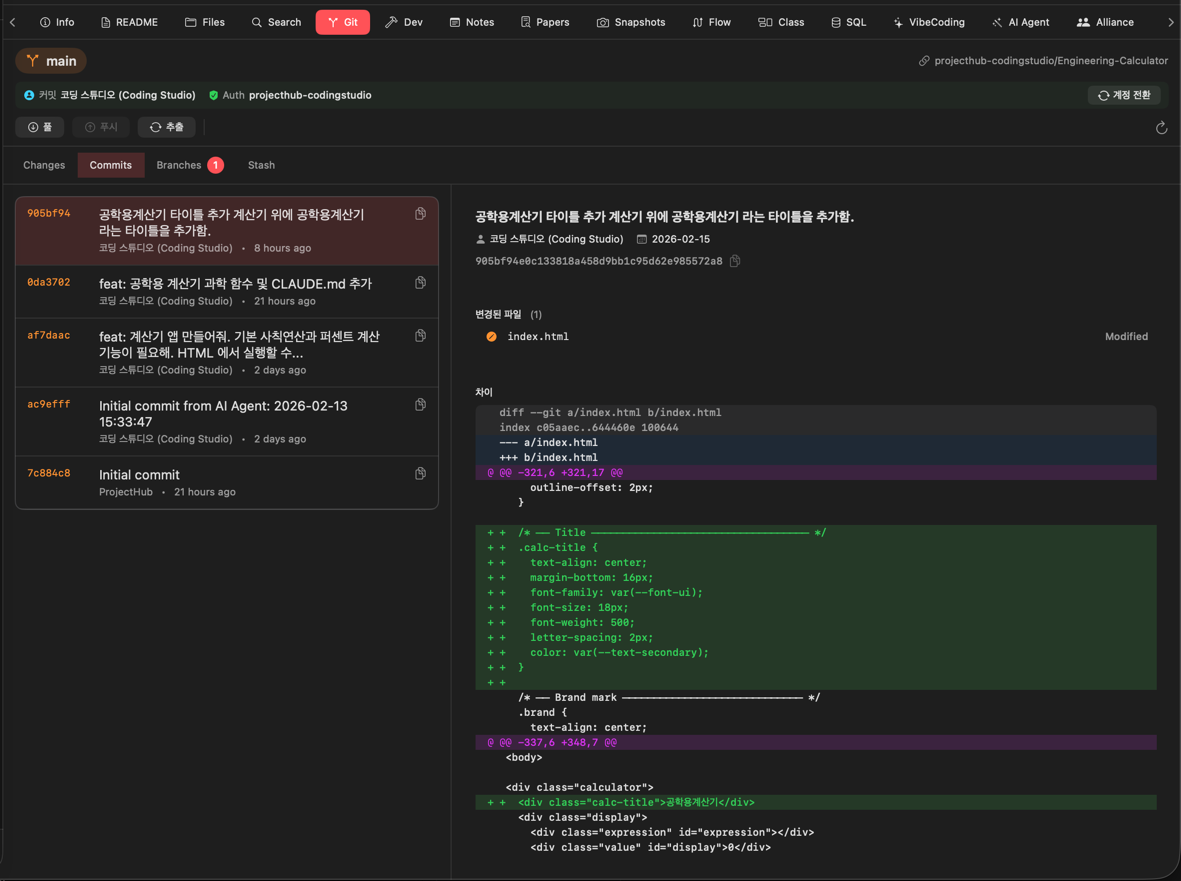
Automatic Repository Detection
When you open the Git tab, it automatically scans for all .git repositories within your project directory (up to depth 4). Repositories created by AI systems (AI Agent, Avalon3, etc.) in subdirectories are detected automatically.
- Projects with no Git repository: displays a Initialize Git button
- Projects with one repository: displays that repository directly
- Projects with two or more repositories: switch between them via a dropdown at the top
Changes
- Split view: file list on the left (Staged / Modified / Untracked) + diff preview on the right
- Click a file to instantly view its diff or content
- Commit popup sheet: write multi-line commit messages + review file list
- Stage All & Commit button for quick commits
Commits (History)
- Split view: commit list on the left + commit details on the right (changed files, colored diff)
- Click a commit to see its changed files and diff
Branches
- Create, checkout, merge, and delete branches
- Confirmation dialogs for merge/delete operations for safety
- Ahead/behind count shown for each branch
Stash
- Split view: stash list on the left + stash details on the right (file list, diff)
- Stash save, apply, and drop
Additional Features
- Subdirectory repository support: Switch between multiple Git repos within a project via dropdown
- Account switching: Manage push credentials via GitHub CLI account switching
- Auth status indicator: Warns when commit user and remote credential mismatch
- Error messages displayed on push/pull failures
Notes & Bookmarks
Manage notes, bookmarks, and memos related to your project in the Notes tab.
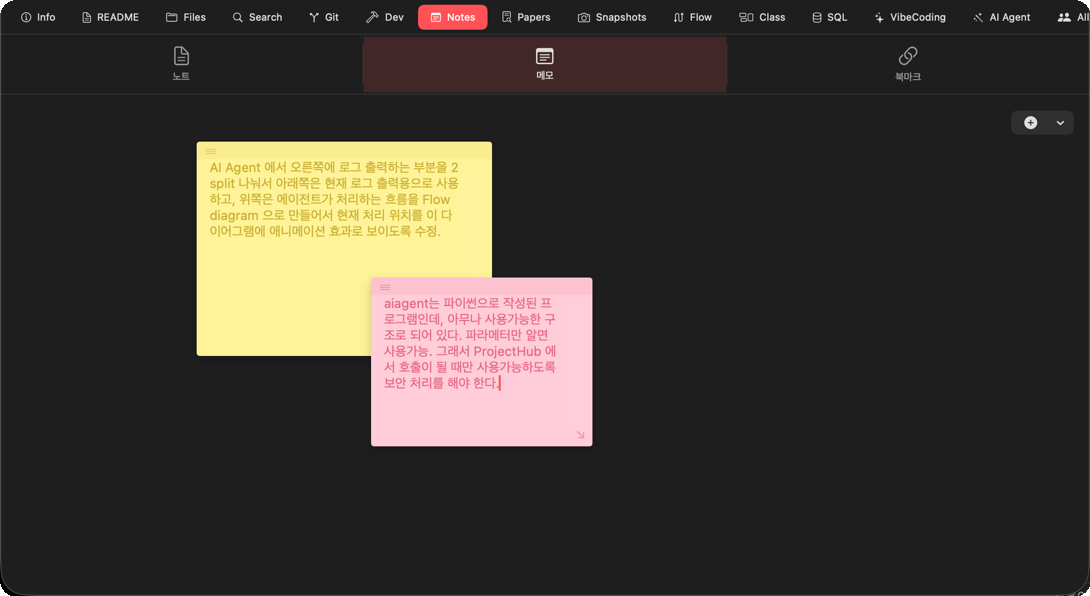
Three Types
| Type | Description | Use Case |
|---|---|---|
| Notes | Long-form text notes | Design decisions, meeting notes, etc. |
| Bookmarks | File path + line number | Save important code locations |
| Memos | Short-form quick memos | To-dos, ideas |
.projecthub/notes.json within the project directory.
Prompt Library
Save and reuse frequently used AI prompts in the Prompts tab.
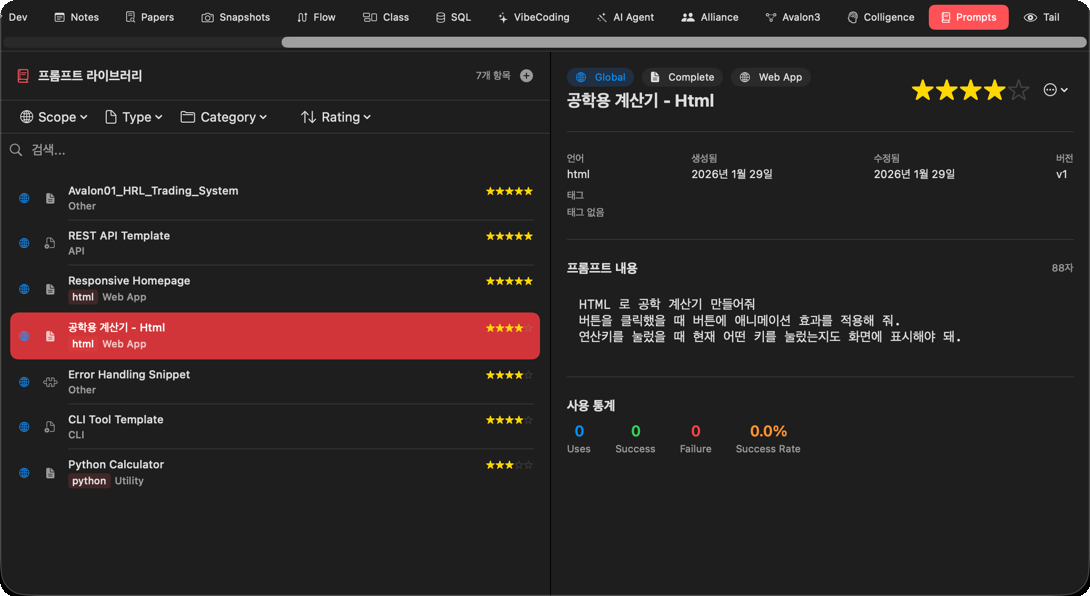
Features
- Global / Per-Project -- Global prompts available across all projects and project-specific prompts
- Category Classification -- Web App, CLI, API, Game, Utility, Data, AI, and more
- Search & Filter -- Search by name, category, or description
- Sorting -- Sort by newest, name, rating, or usage count
- Ratings -- Assign star ratings to prompts
- Usage Tracking -- Automatically records usage frequency
- Template Variables -- Supports placeholders in
{{variable}}format
Creating a Prompt
- Click the + button in the Prompts tab
- Enter a title, category, description, and prompt text
- Save
Prompts from the library can be loaded and used in Avalon3, Colligi, Alliance, and more.
Data Storage Locations
All ProjectHub data is stored in the following locations:
App-Wide Data
~/Library/Application Support/ProjectHub/
├── projects.json              # Project list and settings
├── paper_bookmarks.json       # Paper bookmarks
└── ScheduleNotificationSettings  # Schedule notification settings
Per-Project Data
{project path}/
└── .projecthub/
    ├── ai-agent/              # AI Agent output
    │   ├── docs/              # PRD, file structure, API spec
    │   ├── logs/              # Execution logs
    │   └── screenshots/       # Vision Gate screenshots
    ├── alliance/              # Alliance workflow data
    │   ├── docs/              # Stage-specific documents
    │   └── state.json         # Workflow state
    ├── colligi/            # Colligi analysis results
    ├── avalon3/               # Avalon3 debate results
    ├── snapshots/             # Snapshot ZIP files
    └── notes.json             # Notes/bookmarks data
Next Steps
- Snapshots -- Project version management
- Integrated Terminal -- How to use the terminal
- AI Agent -- AI code generation guide