Snapshot Version Management
ProjectHub's snapshot system lets you save and restore the complete state of a project without using Git.
Overview
Snapshots are a simple and intuitive version management approach that compresses all project files into a ZIP archive. Similar to Git commits, but usable with just a button click -- no setup or command-line knowledge required.
Differences from Git
| Item | Snapshots | Git |
|---|---|---|
| Learning Curve | Very low (button click) | High (CLI commands) |
| Storage Method | Full file ZIP compression | Diff-based |
| Storage Size | Proportional to project size | Efficient (stores only differences) |
| Branches | None (linear timeline) | Supported |
| Collaboration | Local only | Remote repository support |
| Best For | Quick backups, before AI code generation | Team collaboration, long-term projects |
Git and snapshots can be used simultaneously. Snapshots are stored in the
.projecthub/snapshots/folder, so adding this path to.gitignoreis recommended.
Creating Snapshots
Manual Creation
- Select the Snapshots tab in the project detail view
- Click the New Snapshot button (or the camera icon in the header)
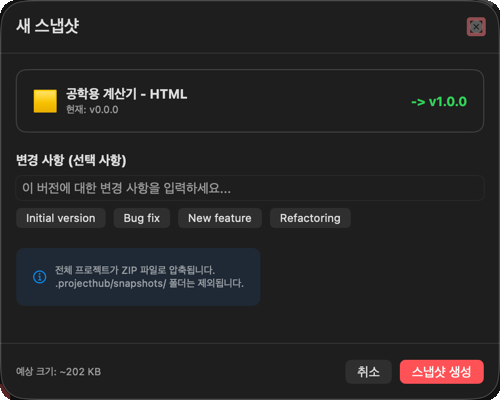
- Enter a snapshot note (optional but recommended)
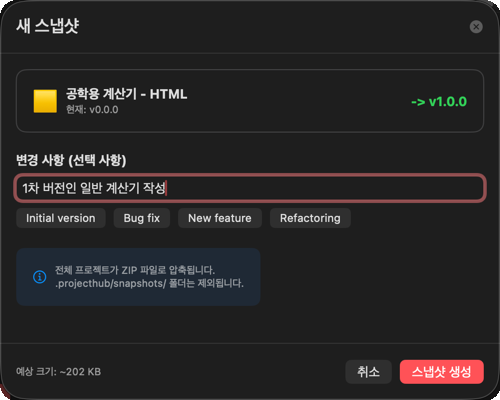
- Click the Save button
- A new entry is added to the snapshot list
Automatic Creation
ProjectHub automatically creates snapshots in the following situations:
| Situation | Description |
|---|---|
| Before AI Agent execution | Automatically backs up the current state before AI generates code in Vibe Coding |
| Before Avalon3 implementation | Automatically backs up before Avalon3 generates code |
| Before Alliance implementation | Automatically backs up before the Implementation stage of the Alliance workflow |
| Before snapshot restoration | Automatically backs up the current state before a restore operation (safety net) |
Automatic snapshots are labeled with notes such as "Auto backup before AI Agent execution".
Snapshot List
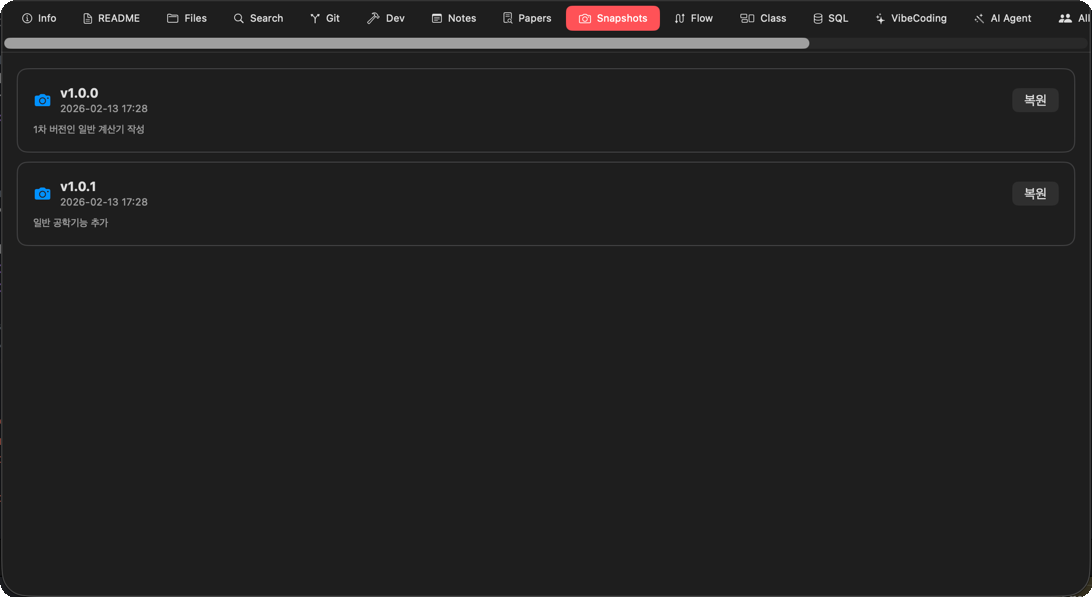
Each entry in the snapshot list displays the following information:
- Creation Date/Time -- The date and time the snapshot was created
- Note -- The description entered by the user
- File Size -- ZIP file size
- Auto/Manual Indicator -- A badge is shown for automatically created snapshots
Restoring Snapshots
Here is how to revert a project to a previous state:
- Select the snapshot to restore from the snapshot list
- Click the Restore button
- A confirmation dialog appears
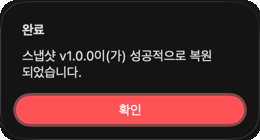
- Click Restore to proceed
Warning: When restoring, all files in the current project are overwritten with the state from the snapshot. If you need your current work, be sure to create a new snapshot before restoring. (If automatic backups are enabled, one will be created automatically.)
Restoration Process
- Automatic backup of the current state (safety net)
- Removal of existing project files
- Extraction of the selected snapshot ZIP file
- Files restored to the project directory
- Restoration complete notification
Deleting Snapshots
Delete unnecessary snapshots to free up storage space:
- Select the entry to delete from the snapshot list
- Click the Delete button
- Confirm in the confirmation dialog
Deleted snapshots cannot be recovered.
Storage Location and Structure
Snapshots are stored as ZIP files in the .projecthub/snapshots/ folder within the project directory:
{project}/
└── .projecthub/
    └── snapshots/
        ├── snapshot_2025-01-15_14-30-00.zip    # Manual snapshot
        ├── snapshot_2025-01-15_16-45-00.zip    # AI Agent auto backup
        ├── snapshot_2025-01-16_09-00-00.zip    # Auto backup before restore
        └── ...
File Naming Convention
Snapshot filenames follow the format snapshot_YYYY-MM-DD_HH-MM-SS.zip, which includes a timestamp of when the snapshot was created.
Storage Management
- Snapshots include all project files, so they consume storage proportional to the project size
- For large projects (several GB), snapshots will be correspondingly large
- It is recommended to periodically clean up old snapshots
- Folders that can be regenerated, such as
node_modulesandbuild, should ideally be excluded from snapshots
Use Case Scenarios
Backup Before AI Code Generation
A snapshot is automatically created before the AI Agent generates a large volume of code. If you are not satisfied with the generated code, you can instantly restore from the snapshot.
Backup Before Experimental Changes
Manually creating a snapshot before trying a new feature or performing a major refactoring allows you to safely revert to the previous state if things go wrong.
Recording Milestones
Creating snapshots with descriptive notes at important project milestones (feature completion, pre-release, etc.) helps you maintain a project history.
Next Steps
- AI Agent -- AI code generation (leveraging automatic snapshots)
- Integrated Terminal -- Working with projects in the terminal
- Project Management -- Complete project organization guide